How to Use the Bulk 2.0 Interlinking Tool of LinkBoss to Remove Orphan Pages
The Bulk Auto-Interlinking Tool is essential for sites with thousands of pages. Instead of creating interlinks manually for each post, you can generate hundreds of semantic connections with just a few clicks.
Step 1: Open the Bulk 2.0 Tool
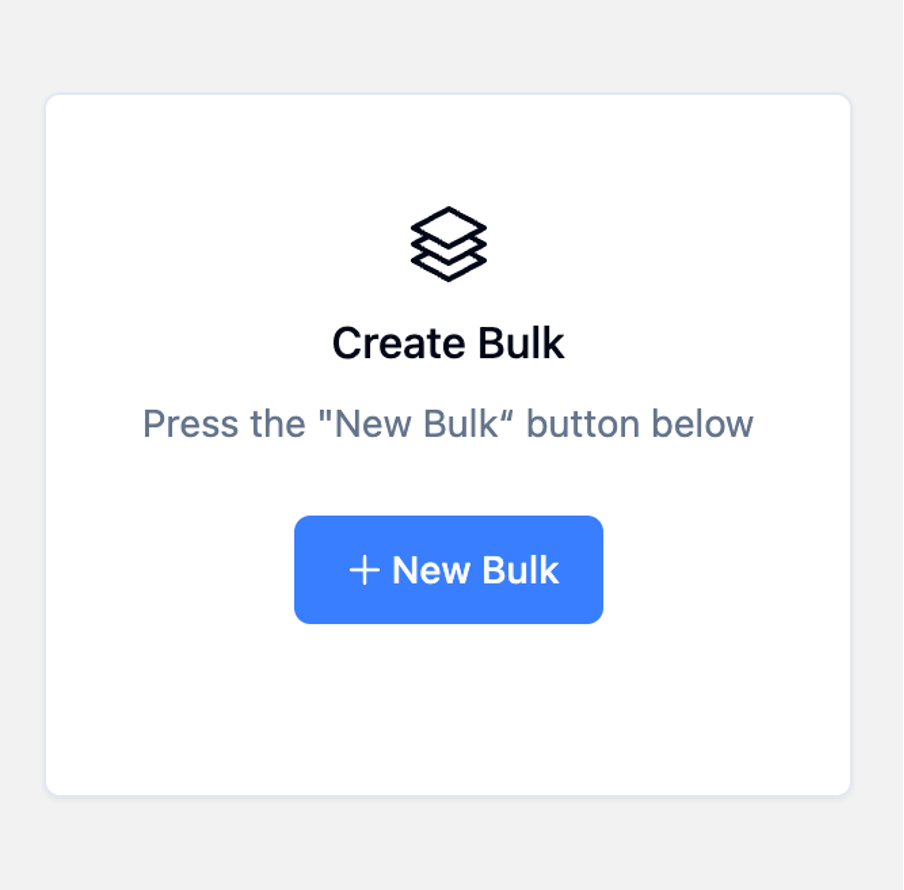
- Navigate to the Bulk 2.0 tool in your LinkBoss dashboard.
- Click the New Bulk button to start a new bulk interlinking session.
Step 2: Take a Backup (Strongly Recommended)
Before making any changes, take a backup of your site. This allows you to revert all modifications if anything goes wrong during the bulk linking process.
- Use the backup option available at the top of the interface.
- Confirm the backup before proceeding.
Step 3: Review How the Tool Inserts Links
At the top of the interface you will find a detailed explanation of how the tool creates links. Take a moment to read it. Key points:
- The tool finds the most semantically relevant paragraph for each target topic.
- It then adds two to three new contextual sentences that naturally contain NLP-optimized anchor text.
- Example link insertions are displayed in the interface for reference.
Step 4: Import Your Orphan Page URLs
- You can paste URLs manually, or click to fetch and import orphan URLs from a specific category.
- Select the category that contains your orphan pages.
- Click Submit to complete the import.
Step 5: Configure the Link Filters
Configure the filters to ensure every orphan page receives at least one internal link.
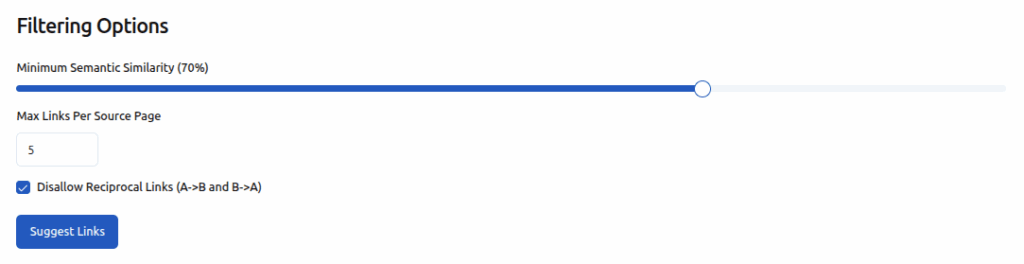
- Set Max Inbound Links per Page to a minimum of 1.
- Set Max Outbound Links per Page to 10 (or adjust as needed).
- Choose whether to allow or disallow reciprocal links based on your preferences.
Step 6: Generate Link Suggestions
- Click Suggest Links to let the tool generate link pairs.
- Review the number of suggested link pairs. If not all orphan pages are receiving suggestions, it means the semantic similarity threshold is too strict.
- Click Visualize to see which pages are still orphaned.
Step 7: Adjust the Semantic Similarity Threshold (If Needed)
If some pages are still orphaned after generating suggestions, the similarity score needs to be lowered.
- Reduce the Minimum Semantic Similarity Score.
- Keep lowering the threshold until suggestions appear for all orphan pages.
- Re-run Suggest Links and use the Visualize button to confirm all pages are now covered.
Step 8: Select All Suggested Links
- Click Select All to choose all the suggested link pairs.
- Check the Skip Paragraph option if you want to avoid placing links in the first few paragraphs of your posts.
Step 9: Create the Links
- Once satisfied with the link suggestions, click Create Links.
- Wait for the bulk linking process to complete. You can manually refresh after a few moments to check the status.
Step 10: Verify the Results
- Once finished, click on any source URL from the results list.
- The newly added link text will be highlighted on the page, showing you exactly where the internal link was inserted.
- Repeat this check for a few pages to confirm links are placed correctly and naturally.
Tips for Best Results
- Always take a backup before running a bulk operation.
- Use the Visualize feature after each threshold adjustment to ensure full coverage.
- Enable Skip Paragraph to keep your introductions clean and free of forced links.
- After completing a bulk run, spot-check several pages to validate the quality of inserted link text.
- Process orphan pages by category to keep your interlinking efforts organized.
By using the Bulk 2.0 tool, you can fix upto 200 orphan pages in minutes — a task that would otherwise require hours of manual effort.
To identify orphan pages for free using an online tool, you can use the Free Orphan Page Checker.
OTHER KNOWLEDGE-BASE ARTICLES