
Trusted by 7,000+ SEO professionals worldwide
The Shopify Internal Linking Tool That Builds 1,000 Semantic Links in One Click
Manual Shopify linking doesn’t scale. LinkBoss uses NLP semantic AI to understand your product relationships, not just match keywords, and builds contextual internal links across your entire Shopify store automatically.
3 Reasons Shopify Stores Choose LinkBoss
Don’t have time for the full breakdown? Here’s what matters most.
Semantic AI, Not Keyword Matching
Shopify’s automatic link matching connects products sharing collections or tags. LinkBoss understands meaning. It can link “moisture-wicking running shoes” to “athletic footwear care guide” even without exact keyword overlap.
1,000 Links Built in One Click
Manual Shopify linking means editing each product individually. A 500-product store with 5 links each = 2,500 operations. LinkBoss does it in a single bulk operation with semantic quality control.
Topic Silos That Rank
LinkBoss builds Reverse, Priority, Serial, and Circle silos with one click. Products cluster under pillar pages, building topical authority Google can understand and reward.
Best Way to Interlink Shopify Stores for Better SEO
Watch how to build semantic silos, bulk interlink 1,000 links, manage anchor text, and visualize your Shopify store’s link architecture. All from one dashboard.
Video tutorial: Bulk linking, semantic silo building, anchor manager, site visualizer, and link health monitoring — all for Shopify stores using LinkBoss.
Your Shopify Store Has a Linking Problem Google Can See
Without structured internal links, Google can’t understand what your store is about. Your products stay hard to find in search results.
What you get: random connections instead of a coherent product taxonomy. Your ranking signals scatter across unrelated clusters instead of building up around meaningful topics.
Stores with 500+ products and 100+ blog posts often have a large portion of pages with no internal links pointing to them. Every orphan product page is a missed chance to rank for its own search term.
The Shopify Internal Linking Tool Built on Semantic AI
Every LinkBoss feature targets a specific Shopify internal linking problem at scale.
Contextual Semantic Interlinking for Shopify
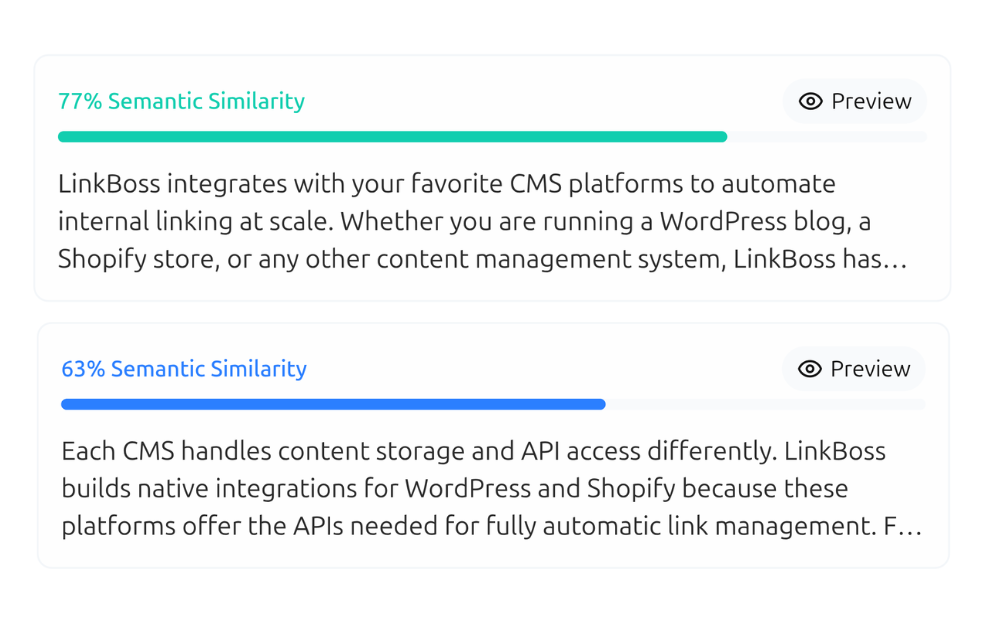
LinkBoss uses NLP and embeddings-based semantic analysis to understand your products, collections, and blog content as related entities, not just keyword strings. It finds link opportunities you’d never catch by matching product titles or tags. Read our complete Shopify internal linking guide for the full walkthrough.
- Understands entity context across products, collections, and blog posts
- Relevancy scores for every proposed link. See confidence before inserting
- Anchor text suggestions that read naturally inside product descriptions
- Smart link generator creates contextually appropriate sentences when needed
Bulk 2.0 — 1,000 Links Per Operation
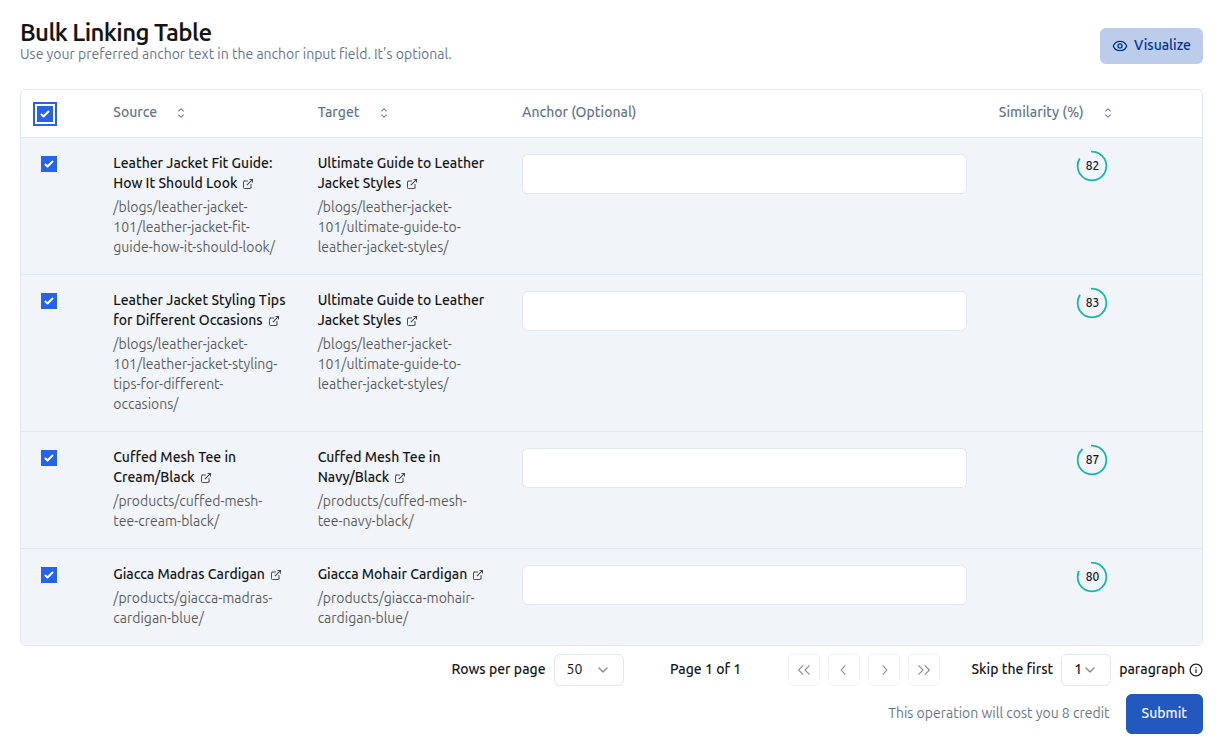
LinkBoss’s bulk linking tool for Shopify creates up to 1,000 contextual links across 200 pages in a single operation. Import URLs from any collection or blog, select orphan pages or your full site, adjust three settings: relatedness threshold, links per page, reciprocal linking. Then let LinkBoss handle the rest.
- Create up to 1,000 contextual internal links in one bulk operation
- Filter by product type, collection, tag, or custom URL lists
- Customize anchor text preferences and semantic quality thresholds
- Visualize your entire link network before deploying
- Option to skip introduction paragraphs for clean link placement
Semantic Silo Builder — Topic Clusters That Rank
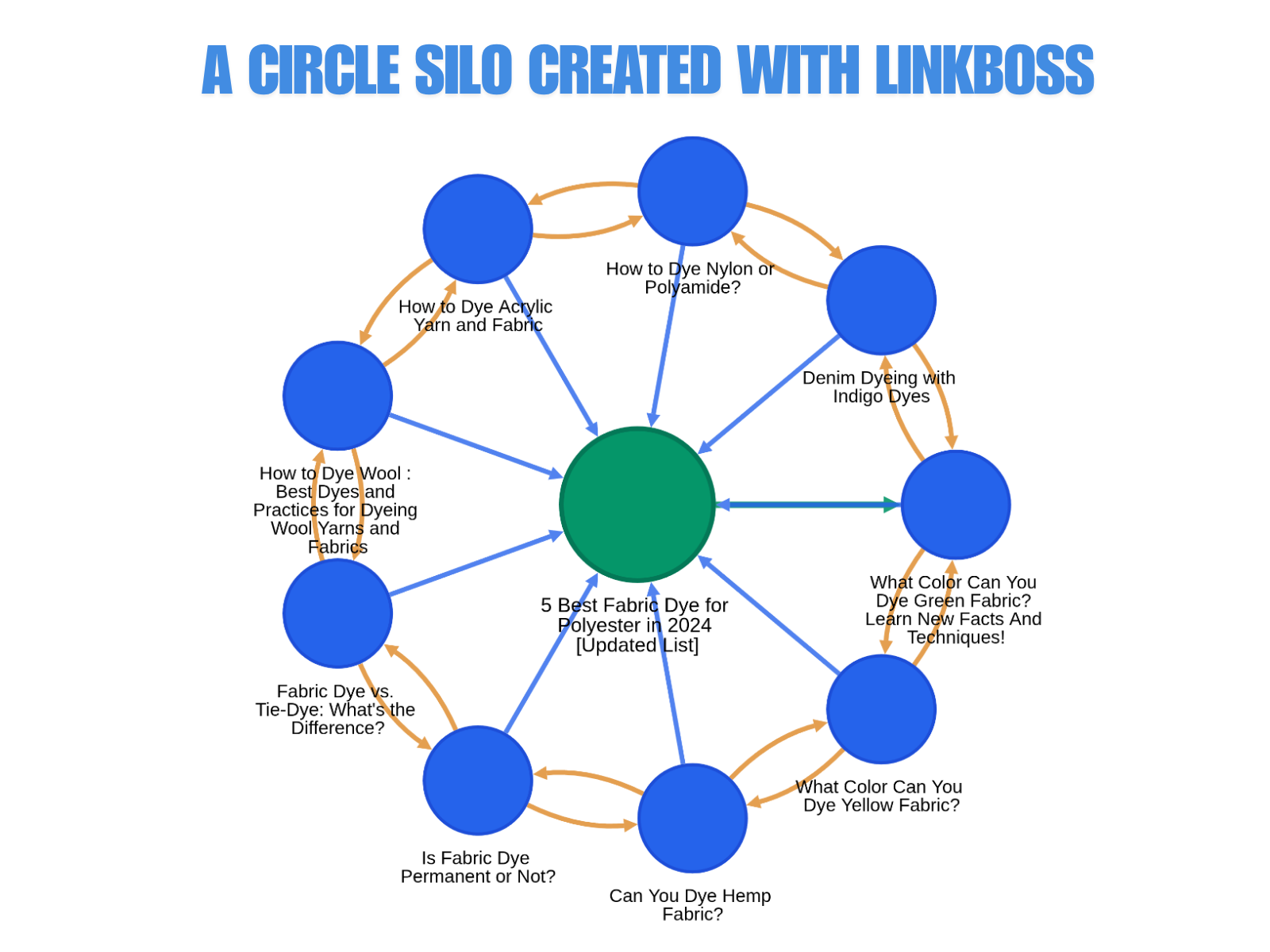
LinkBoss’s semantic silo builder for Shopify stores lets you build silo networks with Reverse Silo, Priority Silo, Serial Silo, or Circle Silo using the Custom Network tool. Set your product page as the pillar, add support content from blog posts or collections, and LinkBoss generates the linking structure automatically.
- Reverse Silo: push authority up from support content to pillar product page
- Priority Silo: concentrate links on your most important product pages
- Serial Silo: chain pages in a topical sequence for logical authority flow
- Circle Silo: pillar to support, support to pillar, support to support for maximum coverage
- Visual silo map shows your Shopify architecture before you apply it
- Boss Mode applies all links from the generated table in one operation
Link Health Monitor — Find Every Orphan Product
LinkBoss’s Shopify link health monitor gives you a site health score for your Shopify store’s internal linking. Detect orphan products, dead-end collection pages, link duplication, and anchor cannibalization. All free.
- Full site health score with detailed breakdown
- Orphan page detection — products with zero incoming links
- Dead-end page detection — pages with no outbound links
- Link flow score shows how authority distributes across your store
- Duplicate link filter finds accidental duplicate links (e.g., multiple buy buttons linking to the same URL)
- HTTP/HTTPS audit and outbound domain tracking
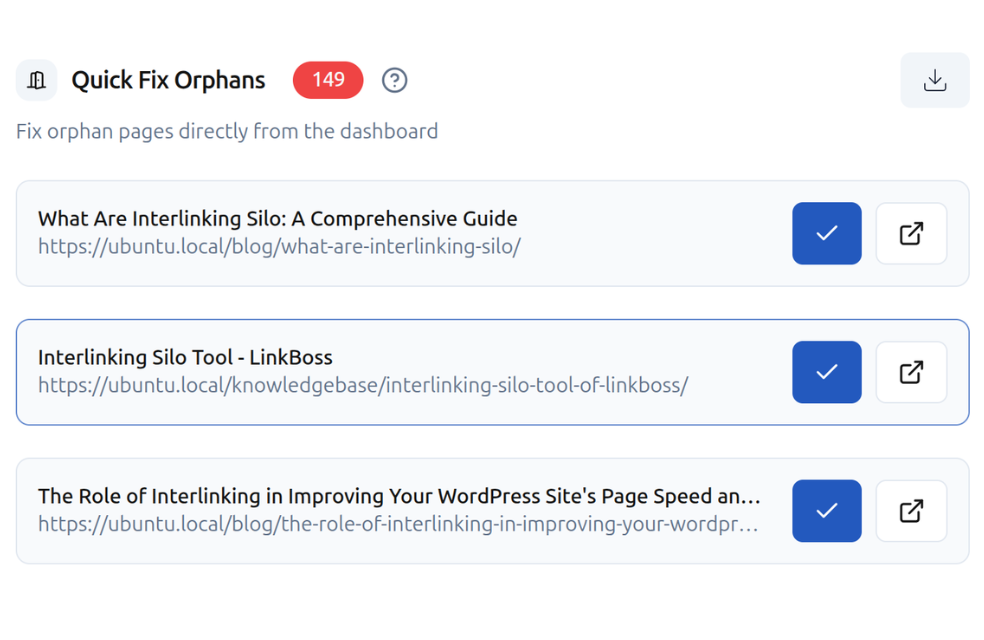
How to Fix Orphan Pages Fast
LinkBoss detects every orphan page across your Shopify store. Then Bulk 2.0 fixes hundreds of them at once, with contextual links that fit naturally into your content.
Bulk 2.0 in action: Fix 200+ orphan pages in minutes with semantic linking, paragraph-level insertion, and Boss Mode automation.
Circular Silo in action: Build a ring structure across all blog posts in a category — so a crawler visiting any one page reaches every other page.
Bulk 2.0 doesn’t insert random links. It finds the most semantically relevant paragraph for your target topic, then adds 2–3 new contextual sentences with anchor text. Every inserted link reads naturally within the surrounding content.
Anchor Text Management + Site Visualizer for Shopify
Two more tools that make LinkBoss the complete Shopify internal linking solution.
Fix it in the dashboard: click edit or delete on any problematic anchor. Before saving, see a relevancy score and anchor category to confirm your fix is correct.
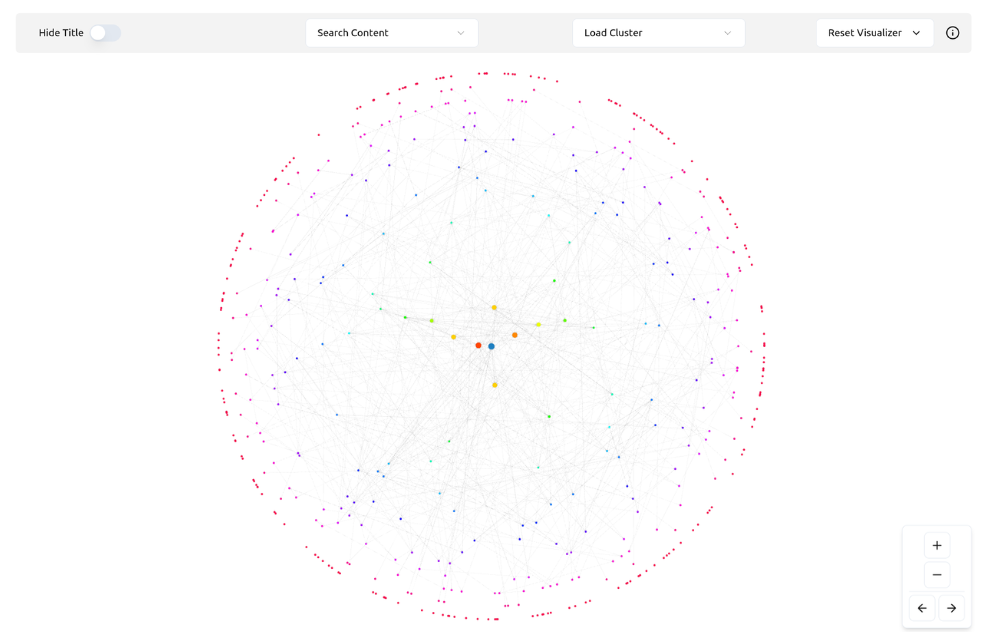
Use it to spot your strongest product pages, find isolated clusters, and understand how blog content flows to product pages. It shows you your store’s linking topology and surfaces gaps you’d otherwise miss.
Collection Pages Are Your Store’s Biggest SEO Asset — Here’s How to Build Links to Them
Most Shopify stores treat collection pages as passive category listings. With LinkBoss, you can build topic silos around them. This turns collections into strong category pages that drive organic traffic.
How it works: Choose your collection page as the pillar, enter the topic title, and LinkBoss uses anchor text based on that title to create relevant links from your support content. Visualize the silo, approve the links, and apply with Boss Mode. Or insert links one by one for maximum precision.
What You Get for $0 on LinkBoss for Shopify
Most of LinkBoss is completely free. All audit, analytics, and silo planning tools require no credits and no payment.
Site Health & Audit
- Full site health score & dashboard
- Orphan product & collection detection
- Dead-end page finder
- Link duplication audit
- HTTP/HTTPS link audit
- Outbound domain tracking
- Link flow score per page
GSC Analytics
- Top performing keywords (impressions, clicks, position, CTR)
- Week-over-week ranking movement tracking
- New keyword discovery from the past week
- Downtrending page alerts
- Keyword cannibalization checker
- Anchor text suggestions from high-impression queries
Silo Builder & Visualizer
- All 4 silo preset types (Reverse, Priority, Serial, Circle)
- Custom Network silo builder with visual map
- Archive Silo for collection page pillars
- Full site structure visualization
- Boss Mode for one-click link insertion
Credits are only consumed when automatically inserting links into your Shopify content. You get 50 free credits on signup. No credit card required. All audit, analytics, and silo tools are always free.
Up and Running in Under 5 Minutes
Connect LinkBoss to your Shopify store and start building links. For full setup instructions, see our integration guide — the process takes about 2 minutes with no coding required.
Follow the Setup Guide
LinkBoss connects to Shopify via a custom app. Follow the step-by-step integration guide — create a custom app in Shopify, add the required scopes, and connect it to LinkBoss. Takes about 2 minutes.
Authorize via OAuth
One-click OAuth login. LinkBoss syncs all your products, collections, and blog posts automatically.
Run Free Site Audit
See every orphan product, dead-end collection, and linking gap across your store in seconds.
Build Links & Silos
Bulk create up to 1,000 links or build a complete topic silo. Then apply with Boss Mode.
Simple Pricing for Shopify Stores
Most features are free. Credits only apply when automatically inserting links into your Shopify content.
- Full site health audit & dashboard
- Orphan & dead-end page detection
- GSC-powered keyword analytics
- All silo builder tools & presets
- Site visualizer
- 2,400 credits per year
- Renews yearly
- WordPress + Shopify support
No credit card required
- Everything in Launch
- 3 stores from one dashboard
- Bulk interlinking (up to 1,000 links)
- Silo builder with Boss Mode
- Smart anchor optimization
- Custom network silo builder
- Links stay permanent
- 3 site swaps/month
No credit card required
- Everything in Scale
- 10 stores from one dashboard
- Priority support
- Custom API integrations
- White-label reporting
- 30,000 credits per year
- Unlimited site swaps
- Dedicated account manager
No credit card required
Frequently Asked Questions
Does LinkBoss work with Shopify Plus?
How does LinkBoss connect to Shopify?
Will bulk linking slow down my Shopify store?
Can I control which Shopify products get linked?
What is anchor text cannibalization and how does LinkBoss fix it?
Is LinkBoss free to start?
Your Shopify Products May Be Harder to Find Without Structured Internal Links
7,000+ SEO professionals use LinkBoss to build internal link architecture that Google can actually follow. Start free. No credit card required.